
Industry ITEducation technology
Managed IT Services for Schools and Education Organizations
Plan school IT around the academic calendar. Review device lifecycles, student accounts, classroom support, security, and questions to ask an IT provider.
The short version
Plan IT work around enrollment, testing, term changes, and device returns.
Define who owns student access, classroom support, and data decisions.
Ask providers to show how their support process fits the school day.
In this guide 6 sections
Managed IT services for education can help a school maintain devices, networks, accounts, and support processes. The useful scope depends on the school: one may need daily help-desk coverage, while another needs backup and security support for an existing IT team.
The challenge is timing. A broken classroom device matters differently during a lesson than during summer maintenance. Student rosters change. Shared computers move between users. Testing windows limit when updates can happen. A useful support plan reflects those details.
Start with the school day, not the device count
Before requesting a quote, map the work technology supports. Include teaching, attendance, communication, administration, and any accessibility tools staff and students rely on. Identify what happens when each service is unavailable.
A learning management system, or LMS, holds course materials and assignments. A student information system, or SIS, holds records such as enrollment and schedules. They may exchange roster information, but the connection does not mean every permission change happens automatically.
Classroom continuity
Define how a teacher gets help during a lesson and how a spare device or approved fallback reaches the room.
Student access
Check that the correct class, application, and accessibility settings follow the student.
Office operations
Plan support for attendance, payroll, family communication, and the staff who manage them.
Keep the boundaries clear. Technical support can troubleshoot an application. School staff still own teaching choices, student records decisions, and approval of access. Write down where a classroom issue becomes a vendor ticket or an administrative decision.
Build support around the academic calendar
A school calendar is also a technology calendar. Place enrollment changes, assessment dates, staff training, holidays, and equipment returns on the maintenance plan. Ask who can approve an urgent change during a restricted window.
| Period | Work to plan | Completion check |
|---|---|---|
| Before a term | Prepare accounts, update devices, test classroom Wi-Fi, and confirm app access. | Test a student and staff workflow using approved test accounts. |
| During the term | Handle repairs, review recurring issues, update safely, and process roster changes. | Review unresolved classroom problems and the loaner device supply. |
| Before assessments | Confirm supported devices, required software, connectivity, and escalation contacts. | Run the assessment provider's approved readiness checks. |
| At term end | Collect devices, review departing users, preserve required records, and plan replacements. | Check returned equipment against the device list and confirm approved access changes. |
Do not treat a holiday as an automatic maintenance window. Schools may run summer classes, camps, payroll, or enrollment work while most classrooms are empty. Confirm which services are still in use.
Manage the whole device lifecycle
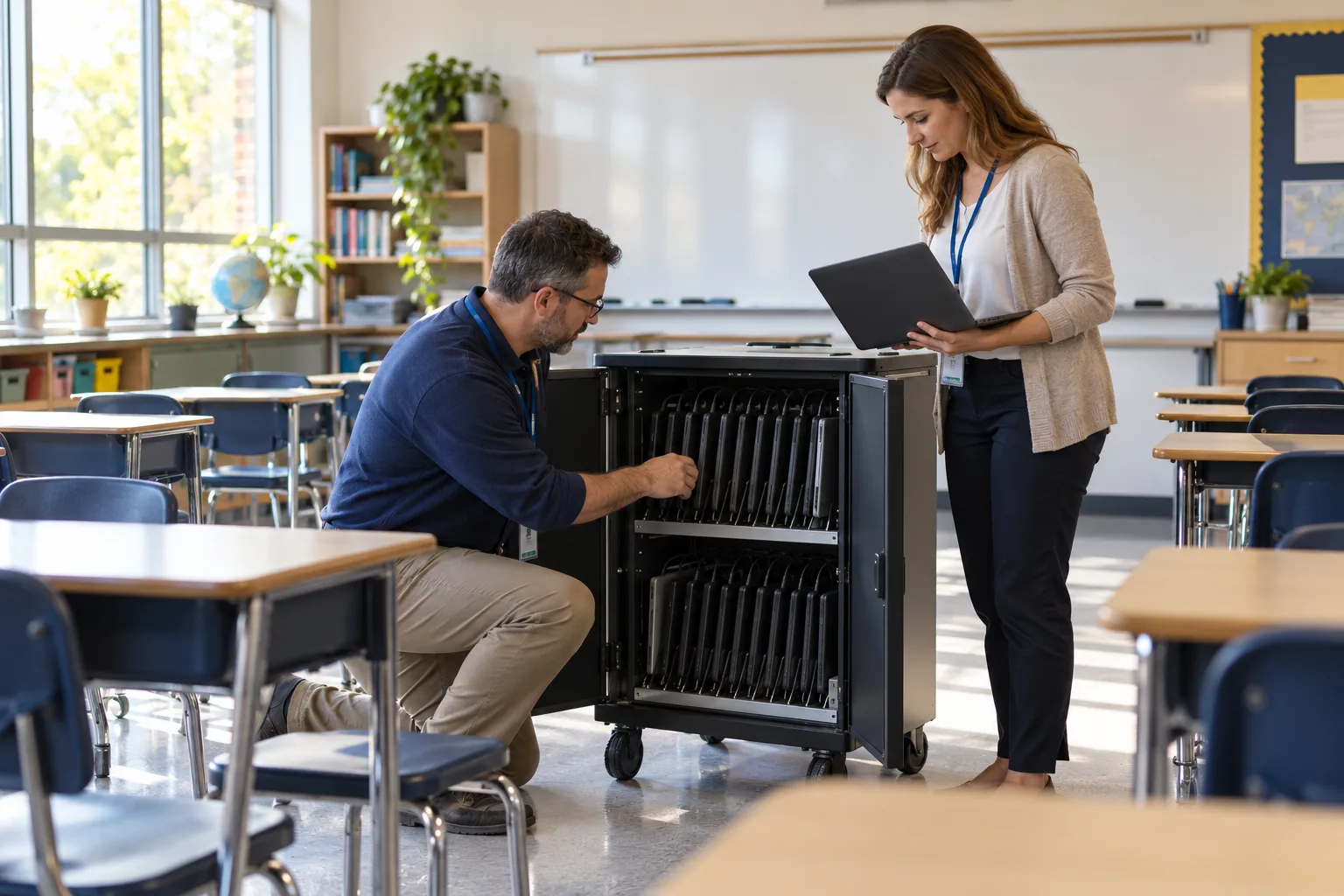
A device plan starts before purchase and continues through secure retirement. Record the asset tag, model, assigned user or room, warranty, support status, and management enrollment. Include chargers, loaners, and shared carts when they affect whether the device can be used.
- Prepare: apply approved settings, updates, required apps, and accessibility needs before issue.
- Assign: record who received the device and how to request help.
- Maintain: monitor health, install supported updates, and track repeated faults.
- Return: inspect the device, reconcile accessories, and preserve data under the school's rules.
- Reassign or retire: remove prior access and erase data through an approved process before reuse or disposal.
Plan for repair turnaround, not just the number of new devices. A shelf of charged, ready loaners is more useful than spare computers waiting for updates. Review failures by model and age so replacement planning reflects actual condition as well as the budget cycle.
For a plain-language explanation of device protection, see what endpoint security covers. The right controls depend on the device platform, how it is shared, and which management tools it supports.
Make account changes a controlled handoff
Enrollment and staffing changes need a reliable path from the school office to IT. Identify the approved source for each change. A help-desk message should not, by itself, grant access to sensitive records.
- Joining: create the correct role and confirm class or staff group access.
- Moving: update permissions when a student changes classes or a staff member changes duties.
- Leaving: remove access at the approved time and handle retained files under school policy.
- Temporary work: give substitutes and contractors limited access with a review or end date.
- Exceptions: document who approved unusual access and when it will be reviewed.
Check downstream applications after a roster change. Disabling a main account may not end an existing session or remove access in a separate tool. Ask the provider to explain which systems are connected and which require a manual step.
Test the transition before students arrive
Use approved test records to check a new student, a class change, and a departing staff member. Confirm the result in each important application. Avoid using real student data in an informal demonstration.
Keep security and privacy duties visible
CISA's K–12 cybersecurity report identifies practical priorities including multifactor authentication, fixing known exploited vulnerabilities, testing backups, practicing incident response, and training. A school should turn those priorities into assigned tasks with evidence of completion.
For example, a backup review should show what is covered and whether a restore worked. An incident exercise should show who can make decisions if email is unavailable. Training should give staff an easy way to report a suspicious message; our guide to social engineering attacks explains common warning signs.
New educational apps also need a data review. Ask what information they collect, who can access it, how the school retrieves it, and what happens when use ends. The U.S. Department of Education's online educational services guidance addresses privacy and security considerations for third-party tools used by students or parents as part of school activity.
Route legal and policy decisions through the school's responsible staff and advisers. Buying managed IT support does not automatically establish compliance or transfer the school's decision-making duties to the provider.
Questions to ask an education IT provider
Ask for a walk-through of your likely support situations. A general list of services does not show whether the arrangement fits your school day.
- What happens when a classroom loses access during instruction?
- Which work is remote, which requires an on-site visit, and what hours are covered?
- Who manages shared devices, application vendors, and roster connections?
- How are provider administrator accounts protected and reviewed?
- What reports show recurring issues, unsupported devices, and recovery test results?
- What documentation, credentials, and data will the school receive if the agreement ends?
If the school has internal IT staff, a defined co-managed support scope may be more useful than replacing existing responsibilities. If broader help is needed, compare managed IT support against the calendar, devices, and workflows above. Confirm education-specific requirements and service fit during the discussion.
Sources & further reading
Use these references to explore the details behind this guide.
Your next step
Discuss the support your school actually needs
Bring your academic calendar, device mix, and current support gaps to a conversation about scope and fit.